Local dashboard
After setup, open the local monitor at http://orbimon-edge.local when mDNS works, or use the device IP on port 8080.
Orbimon Edge is a small appliance on your network next to the Starlink router. It reads the dish locally, sends metrics to Orbimon over HTTPS, and offers a local dashboard after setup.
Orbimon Edge targets several AArch64 boards on one production image. Raspberry Pi 3 Model B+, Raspberry Pi 4, Raspberry Pi 5, and Orange Pi Zero 3 are tested and working with the same zip.
Tested and working
Raspberry Pi 3 Model B+ runs the production 64-bit Raspberry Pi OS Bookworm image Orbimon ships today.
1 GB of RAM is enough for the current Edge workload on this board.
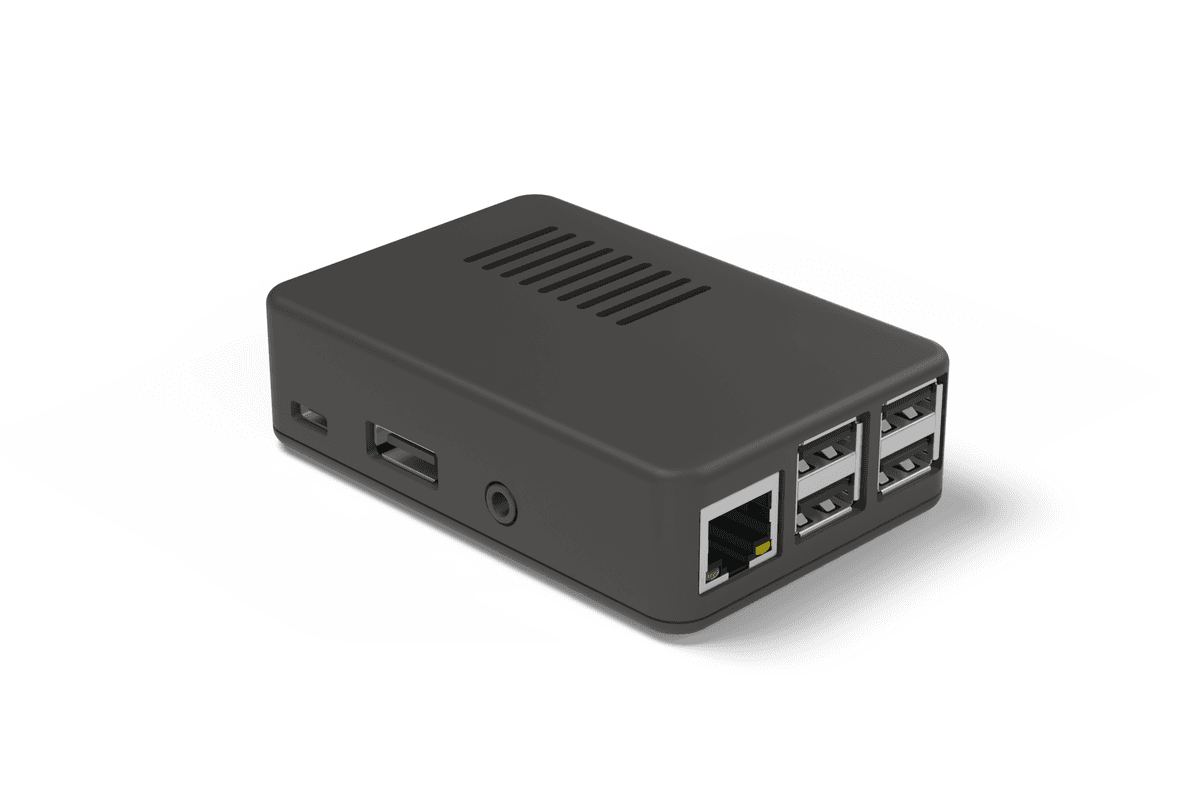
Renders show conceptual, unbranded enclosures for illustration only. They are not a finished Orbimon product and no ingress protection rating has been chosen. A more protective case is planned.
Allow about one to two minutes after power-on for the setup Wi-Fi to appear.
Sign in to the Orbimon app, create or open a monitor, and download the Edge image from the install step.
Raspberry Pi Imager: Use custom, select the zip, write to microSD. You do not need to unzip.
Join Orbimon-Setup-XXXX on your phone or laptop and open http://10.42.0.1/setup in a browser.
Paste the monitor token, connect Ethernet or Wi-Fi toward the Starlink router, finish the wizard, and wait for online status in the app.
After setup, open the local monitor at http://orbimon-edge.local when mDNS works, or use the device IP on port 8080.
Full documentation covers buffering, factory reset, and troubleshooting.
Flash the signed zip from Orbimon. Do not use the legacy shell installer.
Updates start on the device. The Orbimon dashboard can show when a newer release exists; it does not install for you.
On the appliance, open Settings, then Updates, and choose Check for updates when you want to see what is available.
When a release is offered, choose Install update on the device. The board completes the upgrade on your LAN.
The Orbimon dashboard can show when a newer release exists. Orbimon does not push installs or run them for you.
Installers, fleets or distributed sites: we'll show you Orbimon with your setup.